Exporting Images as External Files
Follow the steps below to export images as external files:
Select all the images that you would like to export.
Select File,
Export Selected. You
will see a list of the resolution(s)
of the image(s)
that you have the authority or privilege to export 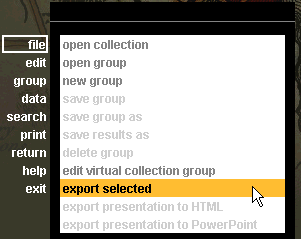
(contact your local systems administrator to modify
your privileges).
Select the desired resolution. You
will be prompted to Name the files individually
or Specify a field as the automatic
file name for all? Beneath
this question you will be able to select either individually
or use field value

Note:
If the source image is available and you have privileges to export it,
the Source Export option will be available to you
If you select Individually,
you will be prompted to select a location where you would like to save
the exported image. Give
the image a name and a location, and select Save.
You will
need to save each selected image individually and give them unique names,
if you have selected more then one image to export. When
you open the exported image in the directory where you saved it, the image
will appear
. 
If you select Use
Field Value, you will need to choose which field to use for its
name. You
will be prompted to choose the data field you would like to export the
image as, from a variety of choices. This
means that the image will automatically be named for the field or fields
that you select. For
example, if you select to Use Field:
Date, and the image you are exporting has a date of 1776 for the
Date field, then this image will be named 1776. You
will be prompted to save the exported image to a location of your choice.
When you
open the exported image from the directory in which you saved it, the
.jpg (jpeg)
file will open with the default graphics application on your computer
that is associated with the .jpg file extension.

If you choose Use Source Name, The original source
file name will be used. This filename will be not have spaces. The spaces
will be replaced with "+" sighs.

Note:
Annotations are included in Image Export Data